

Login with Discord
Firstly, before pressing any other buttons, you need to log yourself using your Discord account, to do so, press the “Login with Discord button”
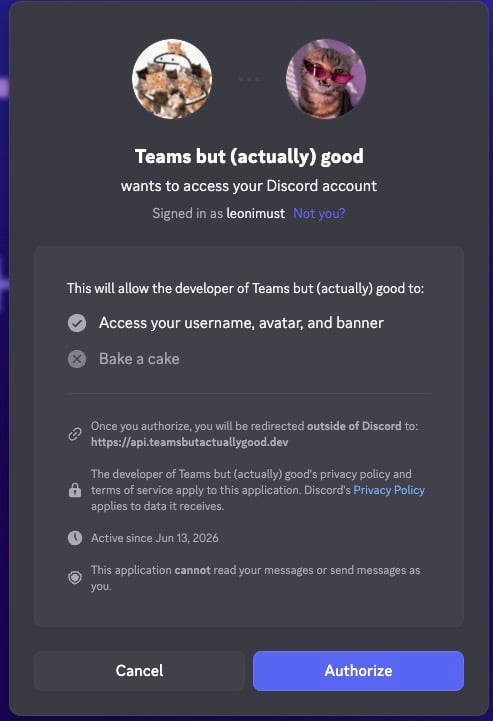
As you can see, TBAG will only need to get your username, avatar and banner, nothing more needs to be granted

Test Login
Now you can close this page to get back to Teams, once there, pres the “Test Login”, this button will tell you if the login works, can be useful if you got an message saying that “No token was provided” or any other message when you try toUpload or Download your settings

Upload Settings
Now we want to upload our settings, so that they can be downloaded on another device / browser without any issues, to do so, just press theUpload Settings button

Ok to accept and Cancel to cancel
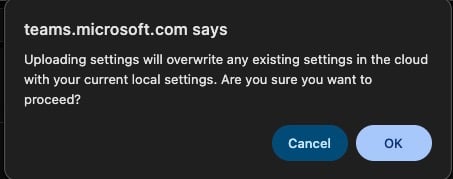
Ok, a new page will open and you should see this

Test login button
Download Settings
This one require a bit more steps to complete, firstly press theOpen Download Settings Modal

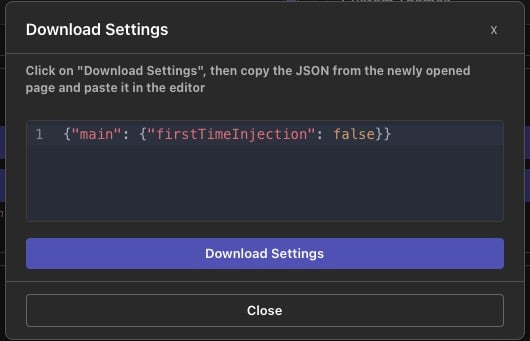
Download Settings button, a new page will open, copy everything from that page, remove the default text in the editor and past what you copied
Once done it should look like that
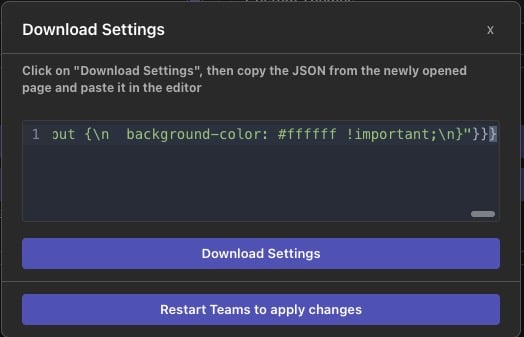
Restart Teams to apply changes will appear, press on it and the settings will be applied
And that’s it ! If you’ve any questions, feel free to join the Discord