> ## Documentation Index
> Fetch the complete documentation index at: https://docs.teamsbutactuallygood.dev/llms.txt
> Use this file to discover all available pages before exploring further.
# Usage
For devs you can go to the [information](/dev-information) page, it'll explain most thing you need to know when working on Teams but (actually) good
Using Teams but (actually) good is really simple, it works the same way on your browser and on the app
Firstly open the app or go on Teams in your browser and connect yourself to your account if that's not done already.
Keep in mind the info part in [desktop](/desktop) and [extension](/extension), some issues might be written on it.
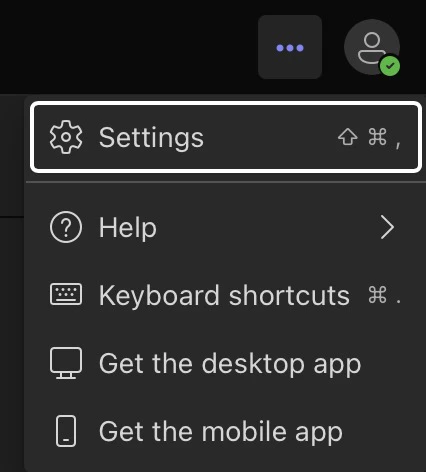
Next to your avatar, press the `3 dots` and press on `Settings` (or whatever it's called in your language)
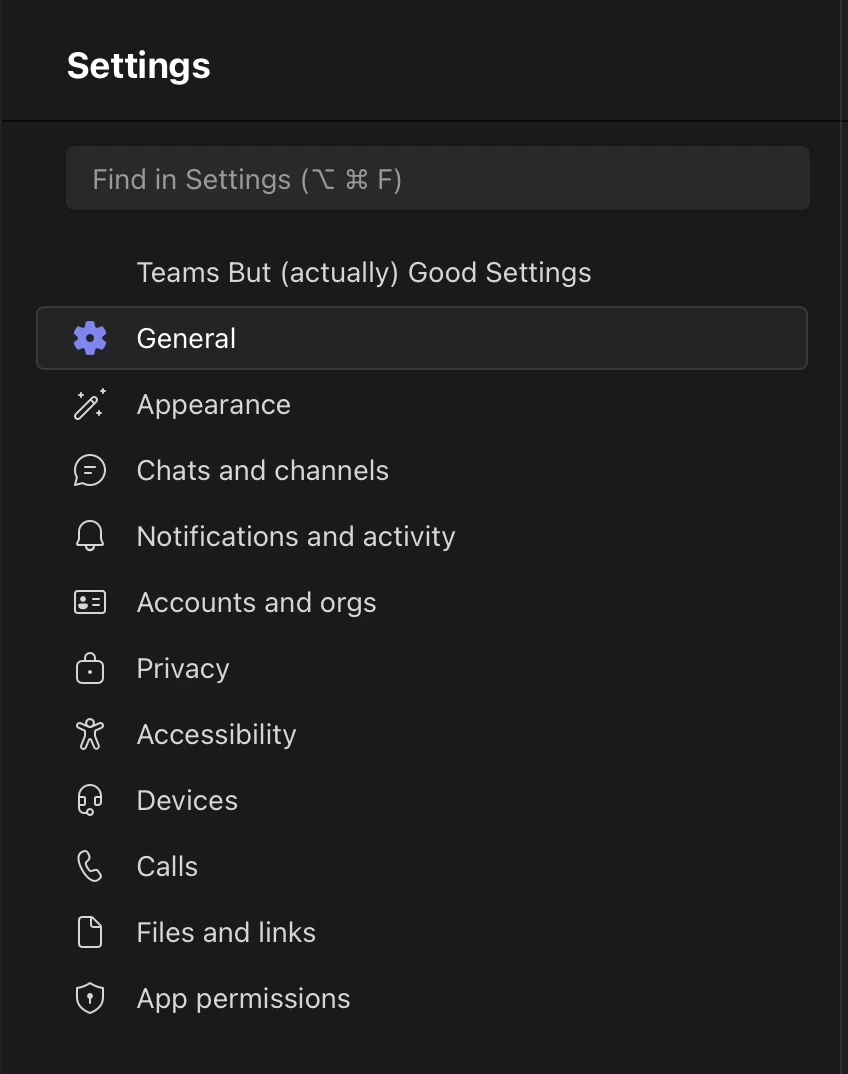
 Now select `Teams but (actually) good Settings` in the settings tab
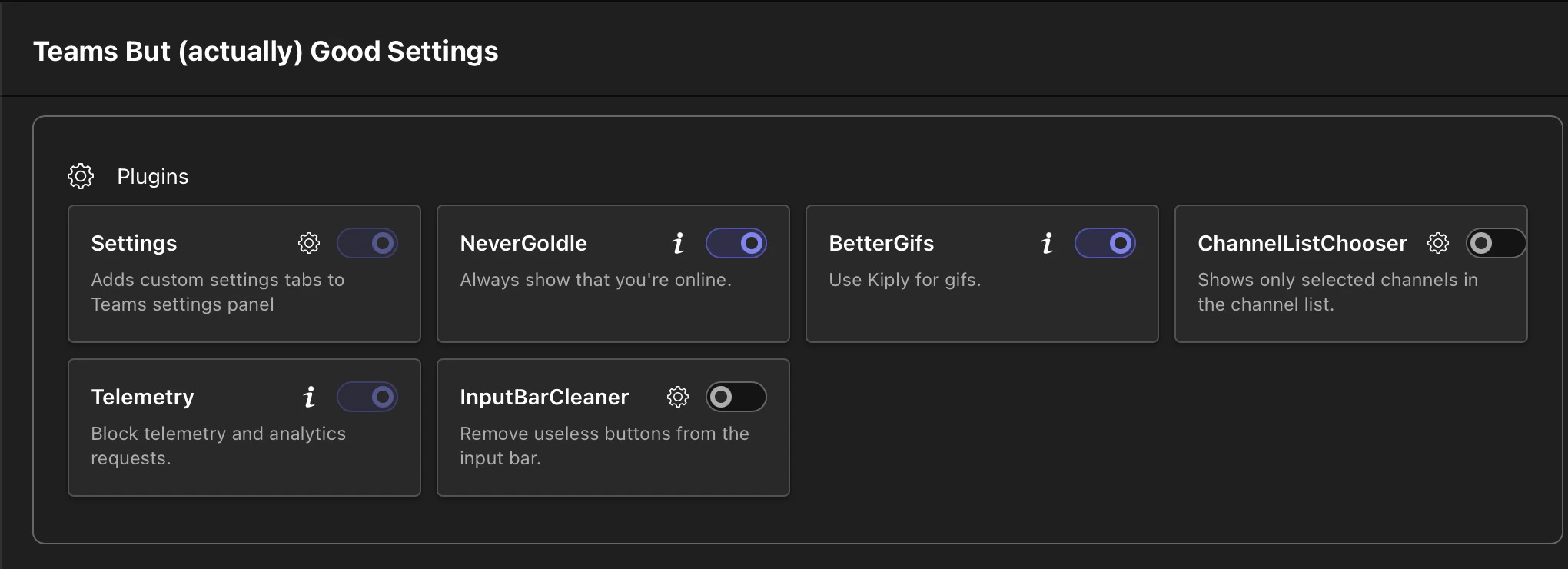
 Once selected you'll see this, this is the plugin list
Plugins get added / removed with time, so your plugin list might not look the same as the one on the photo
Once selected you'll see this, this is the plugin list
Plugins get added / removed with time, so your plugin list might not look the same as the one on the photo
 Some plugins / settings in plugins / themes, might require you to restart teams, a big button will appear if that's the case, you just need to press on it, like the one below
 Here you can enable or disable plugins (beside the enable by default ones, like `Settings` which is mandatory)
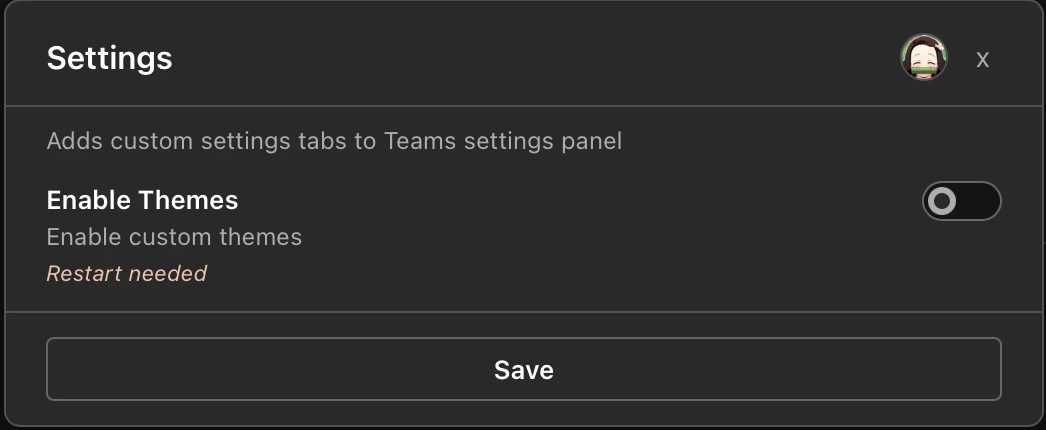
Plugins can also have settings, like the `Settings` plugin which you can disable or enable the Themes altogether (which does require a restart)
Here you can enable or disable plugins (beside the enable by default ones, like `Settings` which is mandatory)
Plugins can also have settings, like the `Settings` plugin which you can disable or enable the Themes altogether (which does require a restart)
 When Themes are enable (which is by default) you'll see this under the plugin list
Like for plugins, Themes get added / removed with time, so you'll probably see something different than the screenshot
When Themes are enable (which is by default) you'll see this under the plugin list
Like for plugins, Themes get added / removed with time, so you'll probably see something different than the screenshot
 Then you can select the theme you want and restart themes to apply the changes.
The [Sync](/sync) section has his open page!
And that's it ! Teams but (actually) good is really easy to use for people.
Then you can select the theme you want and restart themes to apply the changes.
The [Sync](/sync) section has his open page!
And that's it ! Teams but (actually) good is really easy to use for people.