> ## Documentation Index
> Fetch the complete documentation index at: https://docs.teamsbutactuallygood.dev/llms.txt
> Use this file to discover all available pages before exploring further.
# Sync
In this page, you'll see how the Sync system works for TBAG
 This is what the Sync section looks like in the Settings. As you can see, for now, only Discord login is supported.
## Login with Discord
Firstly, before pressing any other buttons, you need to log yourself using your Discord account, to do so, press the "Login with Discord button"
This is what the Sync section looks like in the Settings. As you can see, for now, only Discord login is supported.
## Login with Discord
Firstly, before pressing any other buttons, you need to log yourself using your Discord account, to do so, press the "Login with Discord button"
 Once pressed, you'll be granted with either a login page, which you'll need to log yourself into Discord. Once logged you'll see this
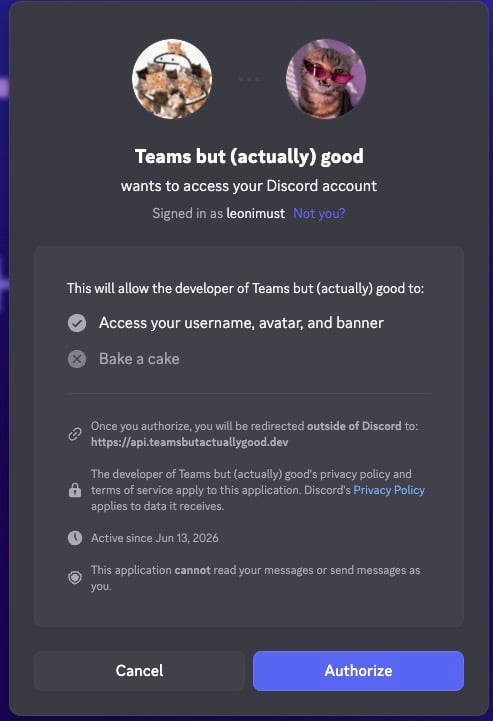 As you can see, TBAG will only need to get your username, avatar and banner, nothing more needs to be granted
Press "Authorize", you'll be redirected to Teams but (actually) good website, if you see this message, this means that the connection was successful, if not, please make an [issue on github](https://github.com/LeonimusTTV/teams-but-actually-good/issues/new?template=bug_report.yml)
As you can see, TBAG will only need to get your username, avatar and banner, nothing more needs to be granted
Press "Authorize", you'll be redirected to Teams but (actually) good website, if you see this message, this means that the connection was successful, if not, please make an [issue on github](https://github.com/LeonimusTTV/teams-but-actually-good/issues/new?template=bug_report.yml)
 ## Test Login
Now you can close this page to get back to Teams, once there, pres the "Test Login", this button will tell you if the login works, can be useful if you got an message saying that "No token was provided" or any other message when you try to `Upload` or `Download` your settings
## Test Login
Now you can close this page to get back to Teams, once there, pres the "Test Login", this button will tell you if the login works, can be useful if you got an message saying that "No token was provided" or any other message when you try to `Upload` or `Download` your settings
 If you see this, everything is fine, otherwise try to log yourself again with Discord
## Upload Settings
Now we want to upload our settings, so that they can be downloaded on another device / browser without any issues, to do so, just press the `Upload Settings` button
If you see this, everything is fine, otherwise try to log yourself again with Discord
## Upload Settings
Now we want to upload our settings, so that they can be downloaded on another device / browser without any issues, to do so, just press the `Upload Settings` button
 An alert will appear asking you if you really want to upload the settings, press `Ok` to accept and `Cancel` to cancel
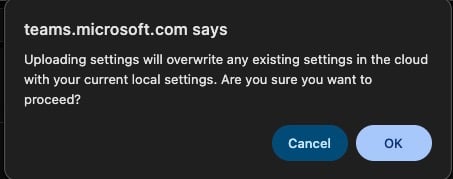 If you pressed `Ok`, a new page will open and you should see this
 If you get an error message, please check that you're logged in with the `Test login` button
## Download Settings
This one require a bit more steps to complete, firstly press the `Open Download Settings Modal`
If you get an error message, please check that you're logged in with the `Test login` button
## Download Settings
This one require a bit more steps to complete, firstly press the `Open Download Settings Modal`
 Once pressed you'll be greeted by this modal
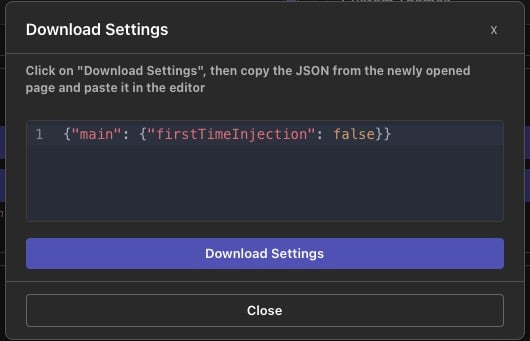 The steps are really easy, press the `Download Settings` button, a new page will open, copy everything from that page, remove the default text in the editor and past what you copied
Once done it should look like that
The steps are really easy, press the `Download Settings` button, a new page will open, copy everything from that page, remove the default text in the editor and past what you copied
Once done it should look like that
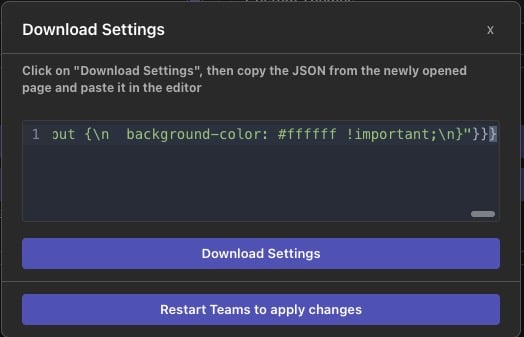 If you don't have any errors, the button `Restart Teams to apply changes` will appear, press on it and the settings will be applied
And that's it ! If you've any questions, feel free to join the Discord
If you don't have any errors, the button `Restart Teams to apply changes` will appear, press on it and the settings will be applied
And that's it ! If you've any questions, feel free to join the Discord