> ## Documentation Index
> Fetch the complete documentation index at: https://docs.teamsbutactuallygood.dev/llms.txt
> Use this file to discover all available pages before exploring further.
# Dev Setup
Here you'll have a simple tutorial and how to install Teams but (actually) good.
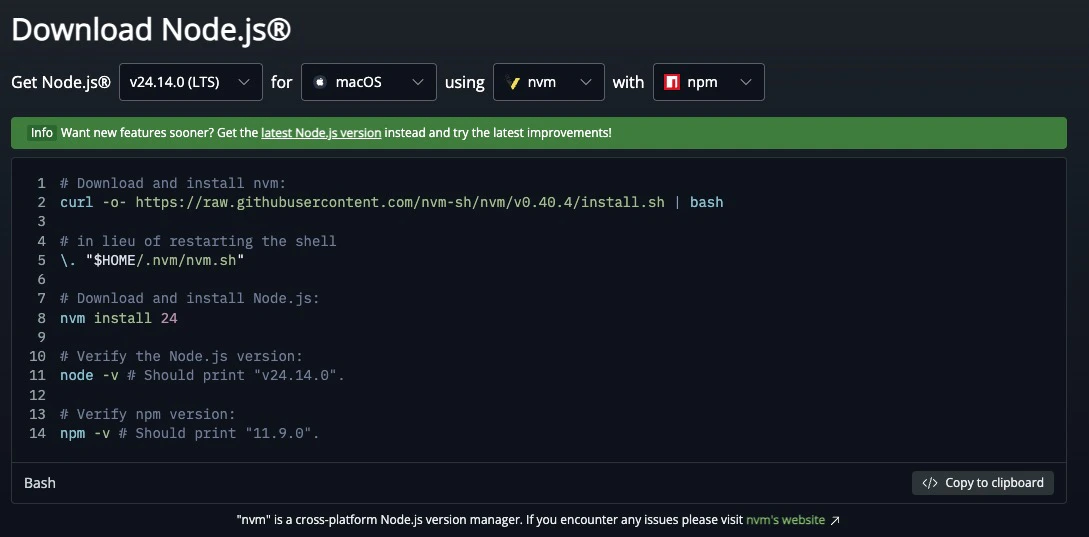
Installing NodeJS is not mandatory, but recommended to avoid some potential issue down the line, bun can work without NodeJS and bun is used for that project.
Go to the [NodeJS](https://nodejs.org/en/download) website, select your operating system and follow the steps on the website.
 Open your Terminal and run this command, it should return the NodeJS version (need to be 22 or more, older might cause some issues).
```bash theme={null}
node --version
```
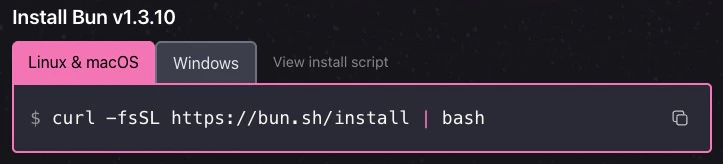
`Teams but (actually) good` uses [bun](https://bun.com/), so you need to do the same :)
Go to the [bun website](https://bun.com/), copy the command for your operating system (should be the one already selected) and past it in your terminal, then follow the steps of the installer.
Open your Terminal and run this command, it should return the NodeJS version (need to be 22 or more, older might cause some issues).
```bash theme={null}
node --version
```
`Teams but (actually) good` uses [bun](https://bun.com/), so you need to do the same :)
Go to the [bun website](https://bun.com/), copy the command for your operating system (should be the one already selected) and past it in your terminal, then follow the steps of the installer.
 Open your Terminal and run this command, it should return the bun version (don't forget to restart your terminal).
```bash theme={null}
bun --version
```
Now go to the [git website](https://git-scm.com/install/), select your operating system and follow the step to install git, you don't need to understand the install option, you can mostly just next all the time and git will be installed on your pc.
Now we can clone the repo, to do that, go into a folder where you wanna store the project in your terminal, and then run this command.
```bash theme={null}
git clone https://github.com/LeonimusTTV/teams-but-actually-good
```
Now open the folder in your code editor, [VSCode](https://code.visualstudio.com/download) is good enough for that if you don't have any.
In the root folder of the project, open a terminal and run this command. This command will install all the dependencies needed to run the projet.
```bash theme={null}
bun install
```
Run this command to see if it generates correctly. If you got no errors, that means that everything worked fine.
```bash theme={null}
bun run generate
```
Go to the [rust download page](https://rust-lang.org/tools/install/) and follow the instruction on the website, rust is needed to build the Tauri app, if you don't plan on using it, rust is therefore optional.
Now the setup is finished, to continue go check the information for devs.
File structure, build commands and project overview
Open your Terminal and run this command, it should return the bun version (don't forget to restart your terminal).
```bash theme={null}
bun --version
```
Now go to the [git website](https://git-scm.com/install/), select your operating system and follow the step to install git, you don't need to understand the install option, you can mostly just next all the time and git will be installed on your pc.
Now we can clone the repo, to do that, go into a folder where you wanna store the project in your terminal, and then run this command.
```bash theme={null}
git clone https://github.com/LeonimusTTV/teams-but-actually-good
```
Now open the folder in your code editor, [VSCode](https://code.visualstudio.com/download) is good enough for that if you don't have any.
In the root folder of the project, open a terminal and run this command. This command will install all the dependencies needed to run the projet.
```bash theme={null}
bun install
```
Run this command to see if it generates correctly. If you got no errors, that means that everything worked fine.
```bash theme={null}
bun run generate
```
Go to the [rust download page](https://rust-lang.org/tools/install/) and follow the instruction on the website, rust is needed to build the Tauri app, if you don't plan on using it, rust is therefore optional.
Now the setup is finished, to continue go check the information for devs.
File structure, build commands and project overview